Log in even easier! Instructions on how to link your Google and Apple accounts.
This time, the setup was completed in just one minute!
This is an announcement about "Google/Apple account linking," which makes logging in much easier.
Please register by following the steps below!
🔧 Anyone can do it! Easy linking procedure
Even if you have already registered with an email address, you can link it to your existing external account by following the steps below.
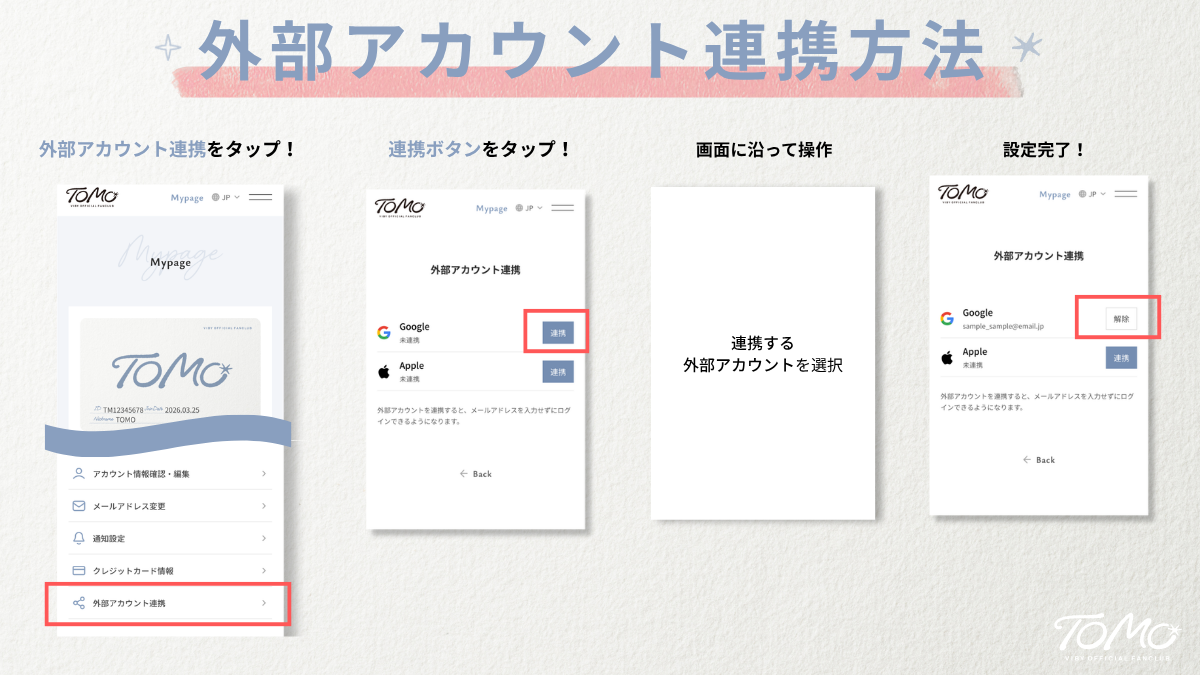
Log in
First, please log in using your email address as you normally would.Open "External Account Linking"
Open the "External Account Linking" page from Mypage.Tap the "Connect" button for the service you want to connect.
Tap the blue "Link" button to the right of the account you want to link.Select an account and link your information.
Follow the on-screen instructions. Your account to link Please cooperate with them.
*This operation will link TOMO 's account with the selected Google/Apple account.Confirm "Connection complete" and you're done!
Return to the TOMO screen. If the button that previously said "Link" has now changed to a white "Disconnect" button, the linking process is complete!
Once the integration setup is complete, you will not need to authenticate your email address for subsequent logins.
Here are the login steps using an external account!
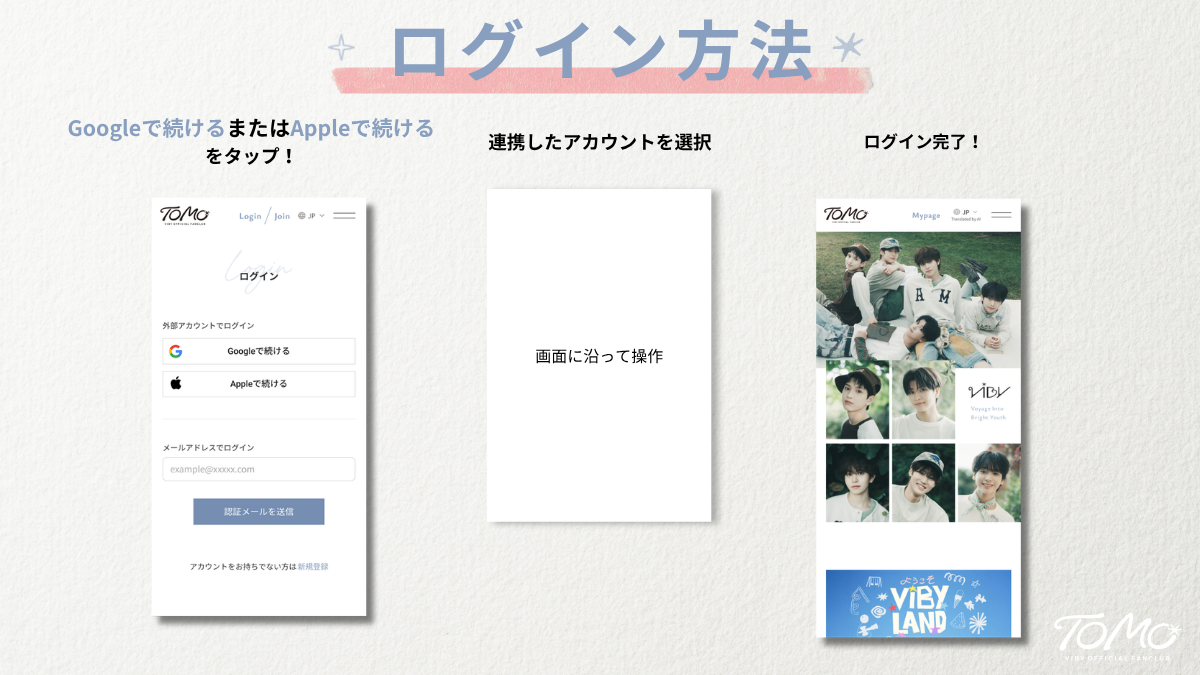
Log in with a linked external account
Tap "Continue with Google" or "Continue with Apple" on the login screen.Select your account
When you see the message "Please select an account," tap the account you linked earlier.Login complete!
You can log in to TOMO without needing email verification!
■Contact Information
If you have any questions or concerns regarding this matter, please contact us using the dedicated form below.
[Contact form is here]
https://support.viby-tomo.com/hc/ja/requests/new